UI
The memoir web UI is an interactive, D3.js-backed explorer for a memoir store. It exposes the same operations as the CLI — connect to a store, browse memories by semantic path, switch branches, walk commits, verify cryptographic proofs — but in a visual form that makes structural and temporal relationships easier to see.
Launching
# Connect to an existing store
memoir ui /path/to/store

# Enable semantic search in the UI's command input
memoir ui /path/to/store --usellm

# Custom port (default: 8080)
memoir ui /path/to/store --port 8081
The server binds to http://localhost:8080 and opens the UI in the browser. Ctrl-C in the launching shell stops it.
Layout
The UI is one page with three fixed regions and a floating command input.
Top bar
| Region | Purpose |
|---|---|
| Branch selector (top-left) | Switch the active memoir branch. Mirrors git branch semantics — each branch has its own commit history and HEAD. |
| Store path (top-center) | The memoir store currently connected. Click the 🔗 icon to copy the absolute path. |
| View switcher (top-right) | Toggle between Tree, Graph, Timeline, and Places without losing the current branch and store context. |
| Theme toggle (far right) | Switch between light and dark themes. |
Commit rail (left sidebar)
Every commit on the current branch, newest first. Each row shows:
- The short commit hash (e.g.
5e6fd7d) and aHEADbadge when applicable. - The commit message — typically
Store <path>.<name>for auto-classified memories. - Author and relative age.
- A diff badge (
+N ~N -N) revealed on hover, counting added / modified / removed paths.
Clicking a commit inspects its change set in the main canvas.
Main canvas
Renders the currently-selected view. See Views below.
Command input (bottom)
Type / to open a slash-command menu, or type plain text for natural-language search. Semantic search activates when the server was launched with --usellm (otherwise the input falls back to keyword matching).
Views
Tree
Hierarchical, folder-style view of memory paths. Expand a node to reveal its children; click a leaf to see the memory value, classification metadata, and commit provenance.
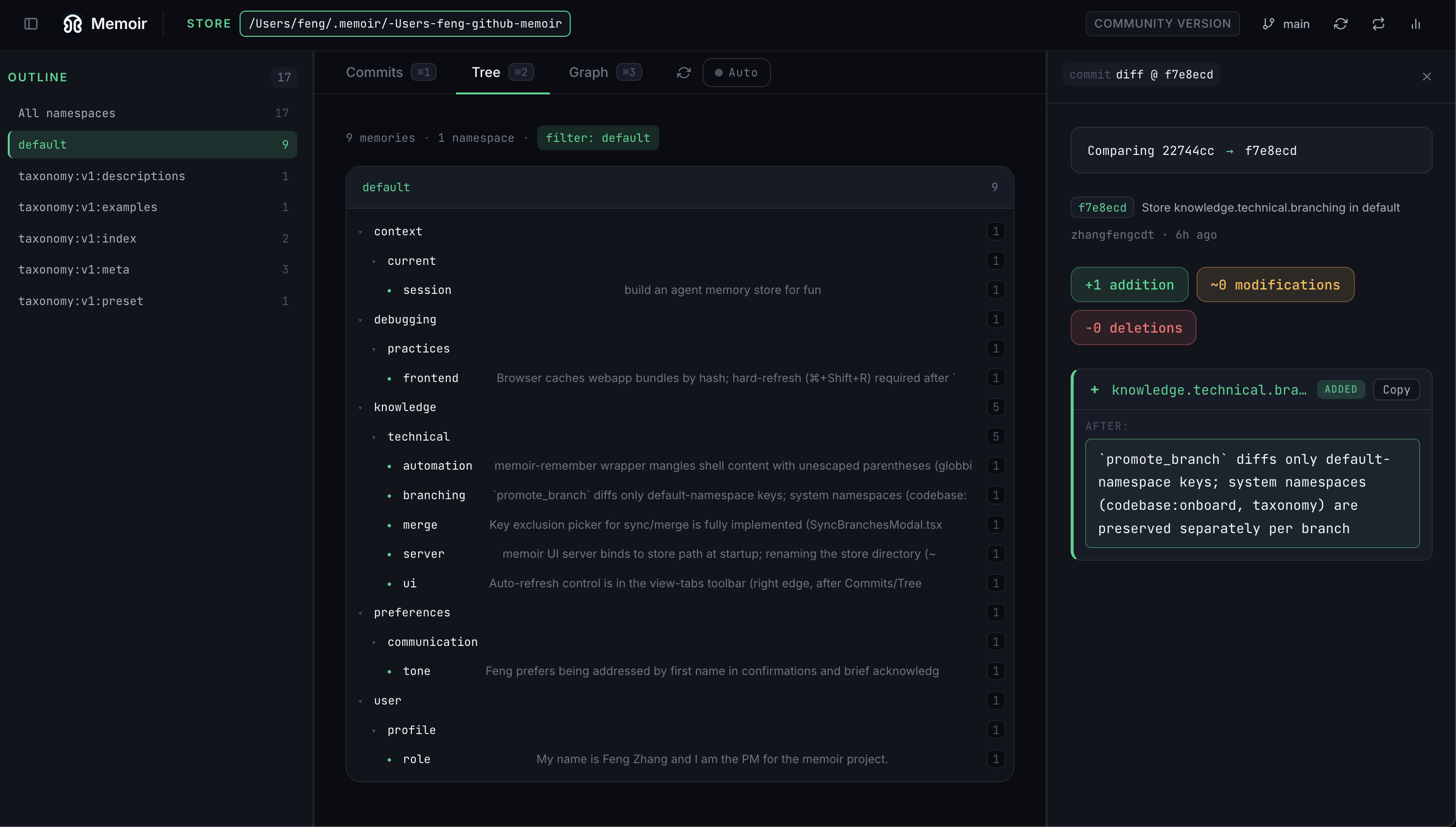
Best for: drilling into a known category, confirming a semantic path exists.
Graph
Force-directed node graph of the taxonomy. Edges connect parent paths to children.
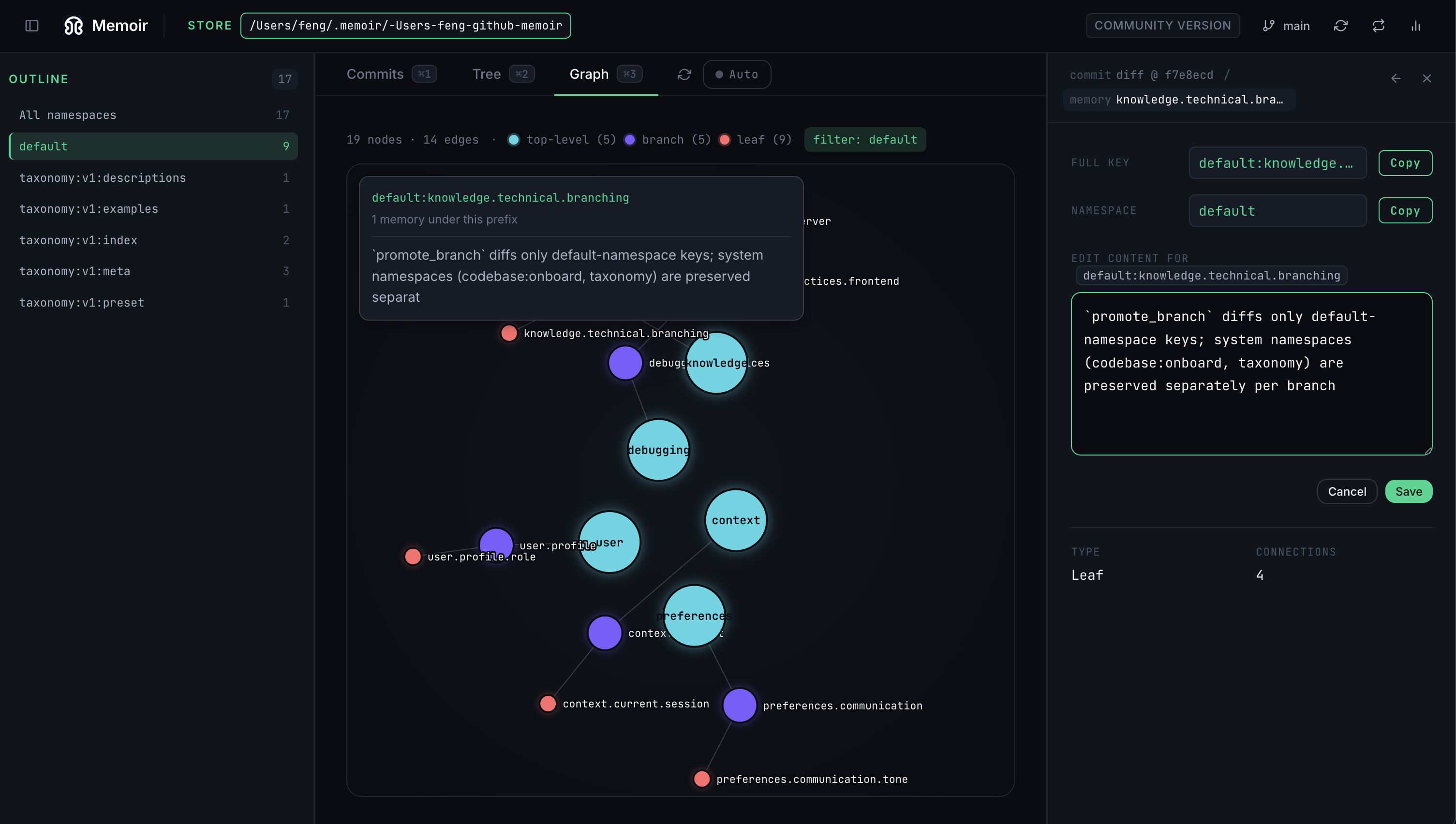
Node coloring:
| Color | Meaning | Example |
|---|---|---|
| Teal | Root category | workflow, settings, project, preferences, entity |
| Purple | Sub-category | workflow.coding, preferences.tools, context.project |
| Red | Leaf (actual stored memory) | workflow.coding.classification, preferences.tools.memory |
Hover any node to highlight its neighborhood; hover a commit in the rail to see a diff overlay on the graph.
Best for: understanding how a store is organized at a glance, spotting over-broad or orphan categories.
Timeline
Chronological feed of commits with per-commit file diffs. Each entry expands to show the memory values added, modified, or removed in that commit.
Best for: reviewing recent activity, auditing what changed between two points in time.
Places
Groups memories by location metadata. Useful when memories carry place / site attributes — e.g. commits captured across different projects or repositories.
Memory Store Statistics (/stats)
Typing /stats in the command input opens the Memory Store Statistics panel — a 7-tab modal over the connected store.
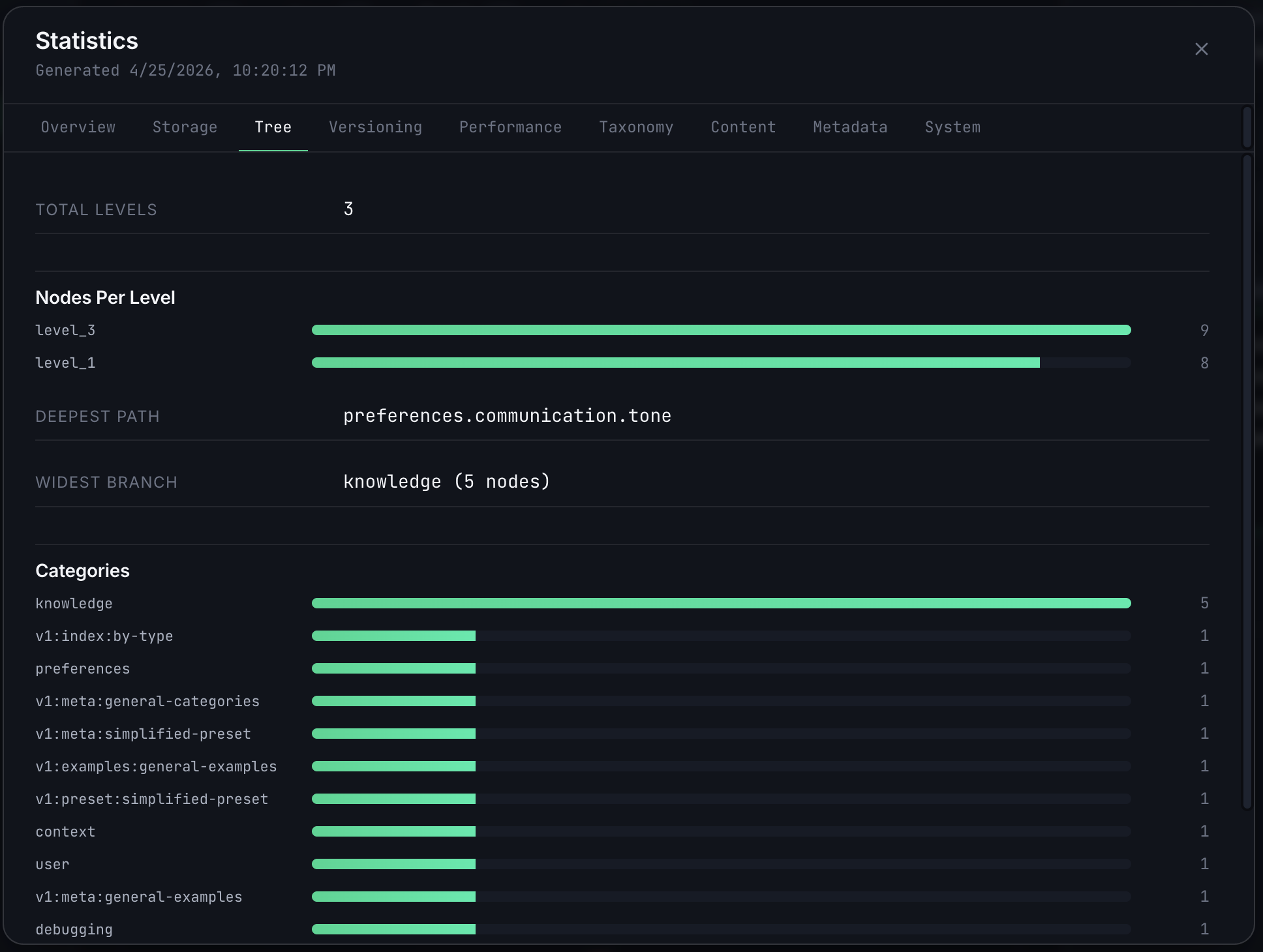
| Tab | What it shows |
|---|---|
| Overview | Top-line counts: total memories, commits, branches, namespaces. |
| Codebase | The codebase:onboard snapshot — goals, structure, modules — when the store was populated via /memoir:onboard. |
| Tree Structure | Depth, branching factor, and leaf counts at each level of the taxonomy tree. |
| Version Control | Commits per branch, merge history, HEADs, recent activity. |
| Performance | Classification and search latencies, cache hit rates. |
| Classification | Distribution of memories across the taxonomy — which paths are hot, which are sparse. |
| Content Analysis | Per-memory size, token counts, and content-type breakdowns. |
The footer offers 🔄 Refresh to re-query the store and 📤 Export JSON to download the raw statistics payload.
Slash commands in the UI
The command input accepts the same mutation and inspection verbs as the CLI — /connect, /new, /remember, /forget, /branch, /checkout, /merge, /commits, /blame, /proof, /verify, /stats, /help, and more. Type /help to open the full command reference with examples.
Plain text (no leading /) is treated as a search query against the current store.
Related
- CLI Reference — the non-visual interface to the same store operations.
- Architecture — how the store, taxonomy, and classifier fit together behind the UI.